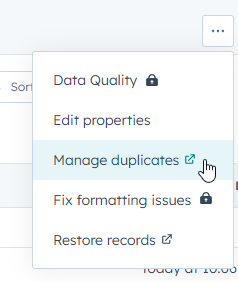
- In the Contact or Company view, navigate to the three dots in the top right-hand corner, then choose 'Manage Duplicates'.
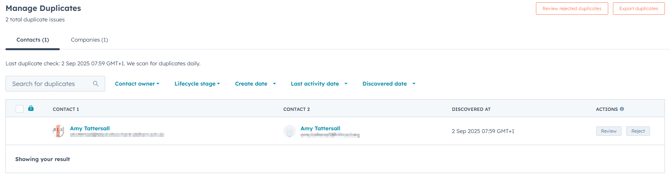
- A new window will then open with the Manage Duplicates tool. This tool can work for Contacts and Companies.
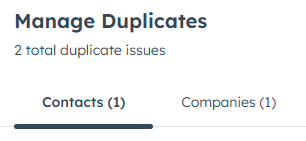
- You can navigate between the two using the top menu bar - this will also show how many duplicates the tool has identified for each record.
- Navigate to the first duplicate and press 'Review'
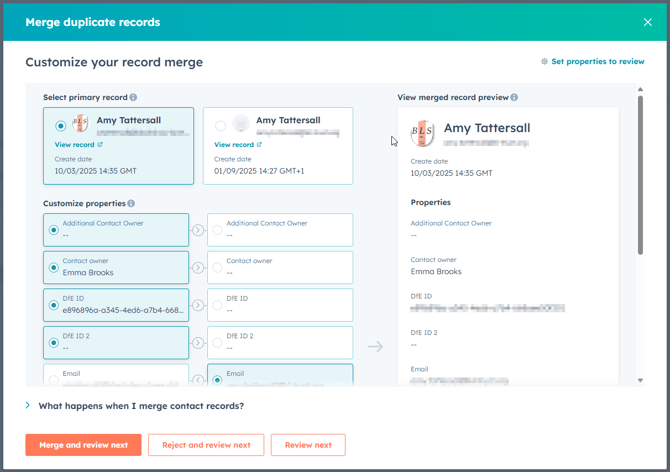
- You'll then be presented with the Merge duplicate records dialogue. If this is your first time using the tool, it's recommended that you choose which properties to display when reviewing. If you don't know how to do this, click here.
- If you need to open up the individual records to view more information to help identify if the two records belong to the same contact or company, then choose 'View record'.
- If the records do not belong to the same contact/company then choose 'Reject and review next'.
- If you records do belong to the same contact/company, choose the overall record that contains the most information for that record (this is the main box with a profile picture and name).
- If there are then individual details on the duplicate record that should replace the primary record detail, you can select these on the individual boxes throughout the dialogue box.
- Once all of the details are selected that should be merged, choose 'Merge and review next'.
- It's worth pointing out that a merge will not delete any data from either of the two records.