
Part 1 - Identify each QA's full list of ECTs
- Navigate to Reporting > Dashboards
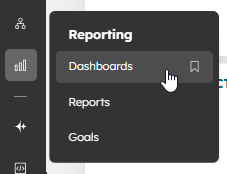
- Once in the Dashboards view, select the correct dashboard - '1 - ECTs by QA Lead'.
It's worth noting that when you open this Dashboard view, all of the reports will read 'Table too large to display'. This is not a problem as you'll be exporting the data.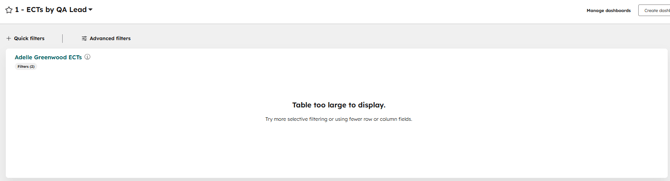
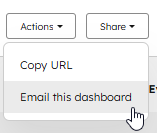
- In the top right, select Share > Email this dashboard
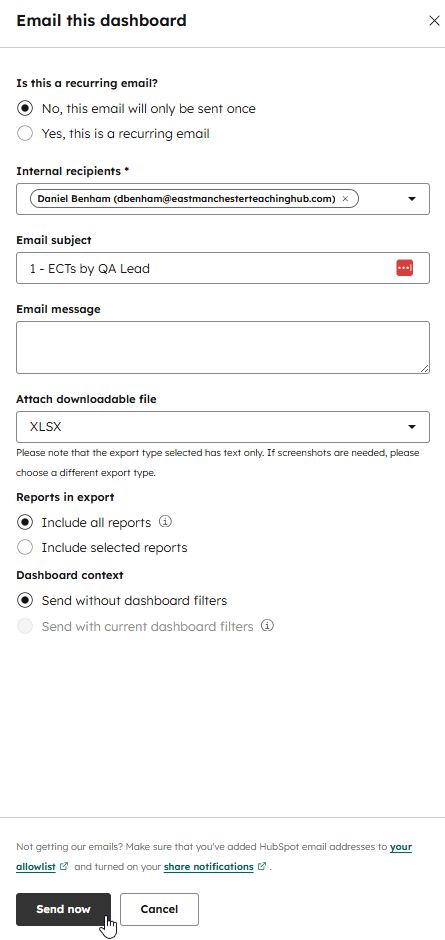
- You'll then be presented with a dialogue box. Choose who you want the dashboard emailed too - this must be a HubSpot user. Also make sure to choose 'XLSX' for Attach downloadable file.
- After a few minutes, you'll receive an email from HubSpot with a link to download the XLSX versions of each QAs report. These will contain the full list of each QA's ECTs.
- Repeat the steps 7 - 13 for each QA.
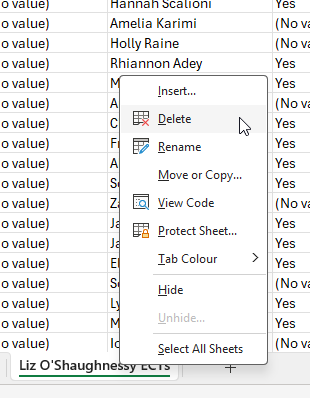
- Open one of the reports. There will be two tabs on the Excel file. You need to delete the second tab (this should contain the QAs name).
- In the QA Review column, head down the list of ECTs and where an ECT should have a QA Review, put 'Yes' in the corresponding cell. Do this for the full list.
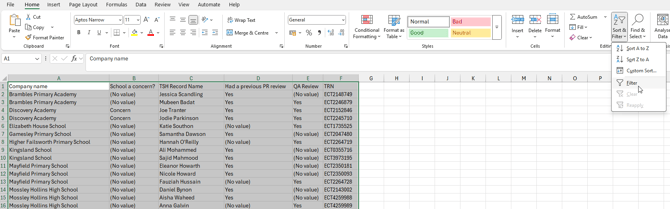
- Select the full data set (you can do this by pressing Ctrl + A). And then choose Sort & Filter > Filter.
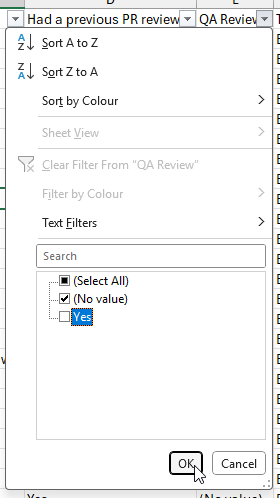
- In the QA Review column, filter so that you can only see cells that contain '(No value)'.
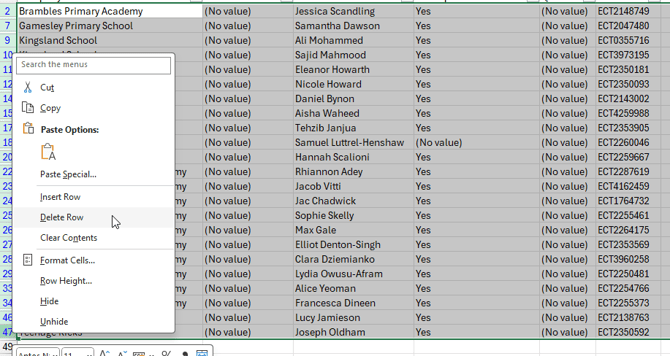
- Highlight all the rows that are left in the filter view. This should be done by highlighting the full rows on the left hand side (including the row numbers). Then right click on the row numbers and select 'Delete Row'.
- Next you need to clear the filter. You can do this by going back to the QA Review column and choosing Clear Filter from "QA Review".
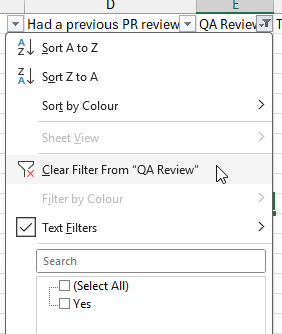
- Save the file. You now have your list of ECTs who will need a QA Review, ready to import back into HubSpot.
Part 2 - Import ECTs requiring a review back into HubSpot
- Navigate to Data Management > Data Integration.
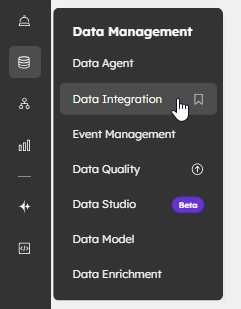
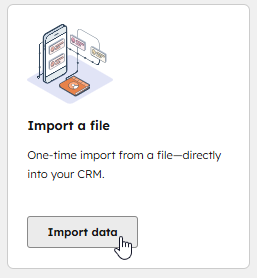
- Under Import a file, chose Import data.
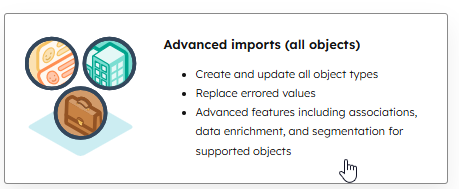
- You then have multiple options for import types, select Advanced imports (all objects).
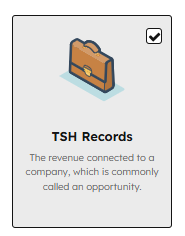
- When asked what kind of data is in your file, only select TSH Records.
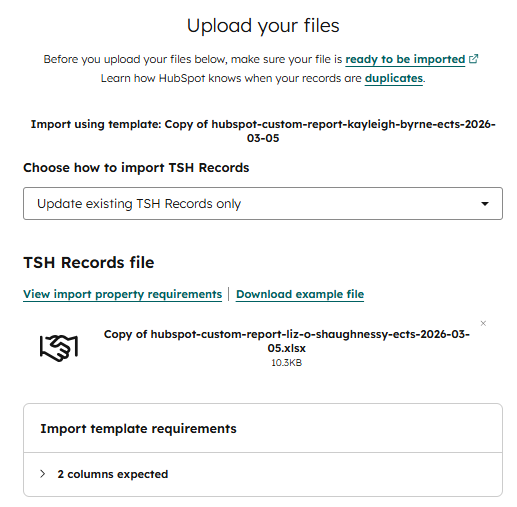
- You'll then be presented with the Upload your files dialogue.
- When asked Choose how to import TSH Records, choose Update existing TSH Records only
- Drag and drop your first QA Excel file into the drag-and-drop box
- Press Next
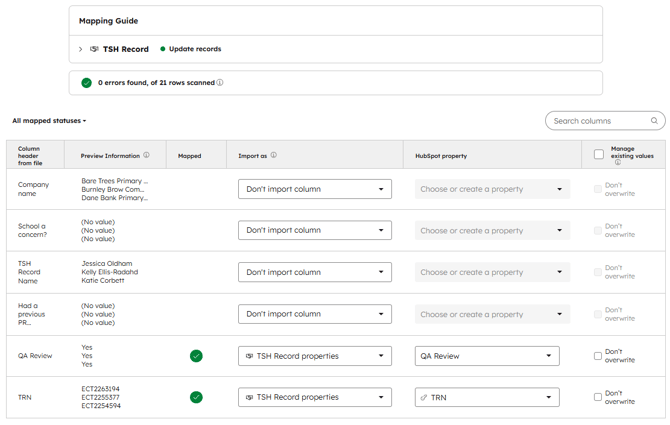
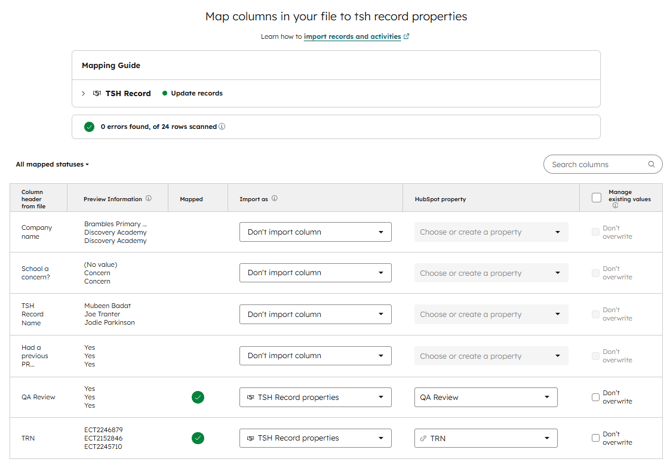
- HubSpot will then give you a list of mapped columns from your excel file. Choose the following options for each row.
Rather than delete these columns from the Excel file, we keep them, so that if there are any errors during the import, they are easy to identify.
- Company name - Don't import column
- School a concern? - Don't import column
- TSH Record Name - Don't import column
- Had a previous PR... - Don't import column
- QA Review - TSH Record properties - QA Review
- TRN - TSH Record properties - TRN
- Press Next
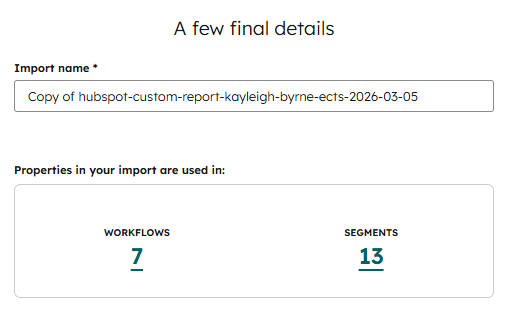
- Finally, HubSpot will give you an overview of your import. Change the import name - good practice is that the import should feature the date it is being completed.
- Once the import is complete, you'll be taken to an overview page. It should feature a green tick and say 'Import completed with no errors'.
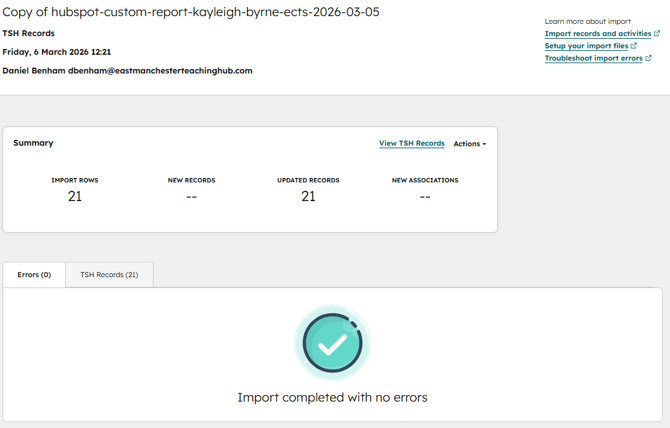
- As you have now completed one of the imports and all of the files should have the same layout, you can repeat the imports with fewer steps:
Head back to Data Management > Data Integration. - Then choose Import Data.
- This time, choose Repeat a past import.
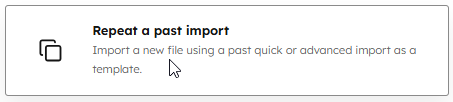
- Upload your file in the same way, and remember to choose Update existing TSH Records only
- The options chosen on the first import should now already be selected without you needing to do it. Have a quick check of your screen to ensure columns are mapped correctly.
- Repeat steps 9 - 13 for each QA.
Part 3 - Export the list of ECTs to review for each QA
- Navigate to Reporting > Dashboards
- Once in the Dashboards view, select the correct dashboard - '2 - ECTs to review'.
- Each report will show a list of ECTs that the QA is required to review based on the imports you completed in the previous part.
- In the top right, select Share > Email this dashboard
- You'll then be presented with a dialogue box. Choose who you want the dashboard emailed too - this must be a HubSpot user. Also make sure to choose 'XLSX' for Attach downloadable file.
- After a few minutes, you'll receive an email from HubSpot with a link to download the XLSX versions of each QAs report. These will contain the full list of each QA's ECTs.
- This is the completed set of ECTs to review for each QA. Use the template word document to copy and paste this data into a branded and formatted version ready to send to QA Leads.